
How to Install Drupal AI: A Step-by-Step Guide
How to install Drupal AI is a question many developers ask when getting started with AI in Drupal. The answer, however, involves much more than running a single Composer command. The drupal/ai project is, in fact, an ecosystem of independent submodules —thirteen in version 1.4.5— that's worth understanding before deciding which ones to enable. This guide walks through the entire process, from creating a new Drupal site to getting your first response from a language model, answering the most common questions that come up the first time around.
The most common mistake isn't about installation — it's about expectations: installing drupal/ai enables the abstraction layer, not an AI provider. Without a provider module —OpenAI, Anthropic, Ollama— and an API key configured, the system has no one to talk to.
Installing
drupal/aiis not the same as having AI running on your site: it's step zero, not the last one.
In this guide you'll learn to:
- Install Drupal AI with Composer. →
- Prepare a Drupal project with DDEV and Drush. →
- Understand Drupal AI's submodules. →
- Configure an AI provider such as OpenAI, Anthropic, or Ollama. →
- Test the installation with AI API Explorer. →
How Drupal AI's architecture works
              drupal/ai (Composer package)
                           │
                           ▼
                      AI Core
                           │
                           ▼
                Optional submodules
      ai_chatbot • ai_ckeditor • ai_api_explorer • others...
                           │
                           ▼
                AI provider modules
 ai_provider_openai • ai_provider_anthropic • ai_provider_ollama • others...
                           │
                           │  Fetch the API keys
                           │  stored in the Key module
                           ▼
              Third-party AI services
          OpenAI • Anthropic • Ollama • others...
                           │
                           ▼
                   Language models
GPT-5 • Claude • Llama • others...drupal/ai Composer package, AI Core, the optional submodules, the Key module, AI providers, and language models.This diagram summarizes the architecture of the drupal/ai ecosystem. AI Core acts as an abstraction layer between Drupal and the different AI providers, so submodules —like AI Chatbot, AI CKEditor, or AI API Explorer— don't depend directly on OpenAI, Anthropic, Ollama, or any specific provider. Instead, they all talk to AI Core, which delegates each request to the configured provider.
This separation lets you switch providers without modifying the code of the submodules that consume AI. In practice, installing a new provider usually just means adding its Composer module, configuring its credentials, and selecting the models to use for each operation.
The Key module isn't tied to any specific provider. Its job is to securely store the API keys used by the different AI providers, so credentials never end up stored directly in Drupal's configuration.
Requirements to install the AI module in Drupal
Before you start, confirm that your environment actually meets what drupal/ai requires: Drupal 10.5+ or 11.2+, PHP 8.3, Composer, and the Key module (required — it handles secure storage of each provider's API keys). To spin up the local environment we'll use DDEV as the development environment and Drush as Drupal's command-line interface.
- Drupal
10.5+or11.2+ - PHP
8.3 - Composer
- DDEV
- Drush
Create the Drupal project and configure DDEV
The first step is spinning up a new Drupal project with the recommended distribution, and configuring DDEV via flags instead of the interactive wizard — which makes the process reproducible in CI or on another team member's machine:
composer create-project drupal/recommended-project drupal-install-example
cd drupal-install-example

ddev config \
  --project-name=drupal-install-example \
  --project-type=drupal11 \
  --docroot=web \
  --php-version=8.3

ddev start
Install Drupal with Drush
With the DDEV container running, install Drush as a project dependency and run the Drupal installation without going through the web installer:
ddev composer require drush/drush

ddev drush site:install \
  --account-name=admin \
  --account-pass=admin \
  --account-mail=admin@example.com \
  --site-name="Drupal Install Example"
Install the drupal/ai project with Composer
With the base site running, the following command pulls in the complete drupal/ai project and its dependencies:
ddev composer require drupal/ai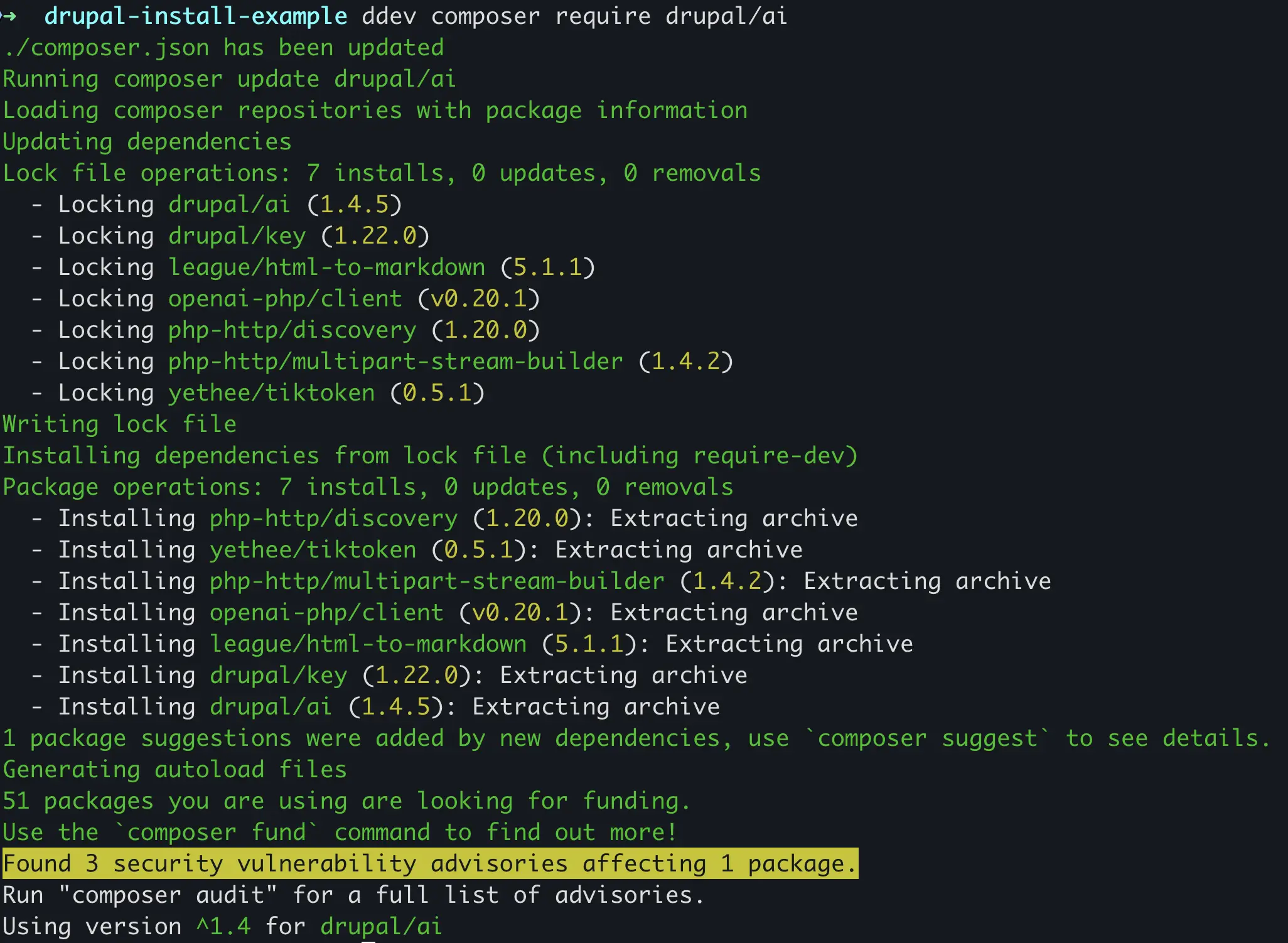
drupal/ai via Composer.Among those dependencies, the Key module comes along —an independent contrib project, not part of Drupal core— if the site didn't already have it installed. Worth keeping in mind, because it shows up mixed into Composer's output and it's easy to assume afterward that it ships with Drupal core: it's actually the module drupal/ai depends on for securely storing each provider's API keys, and it'll show up enabled right next to AI Core in /admin/modules.

drupal/ai.This command doesn't enable any module automatically — it only downloads the code. Enabling specific submodules happens afterward, either from /admin/modules or via Drush, and this is exactly where most guides stop without explaining what you actually just installed.
Which modules Drupal AI installs and which ones to enable
The drupal/ai project isn't a single module — it's a package of submodules grouped together under the "AI" category in /admin/modules. AI Core (machine name ai) is the only mandatory one —it provides the abstraction layer and doesn't do anything visible on its own—; the rest are enabled depending on the use case:
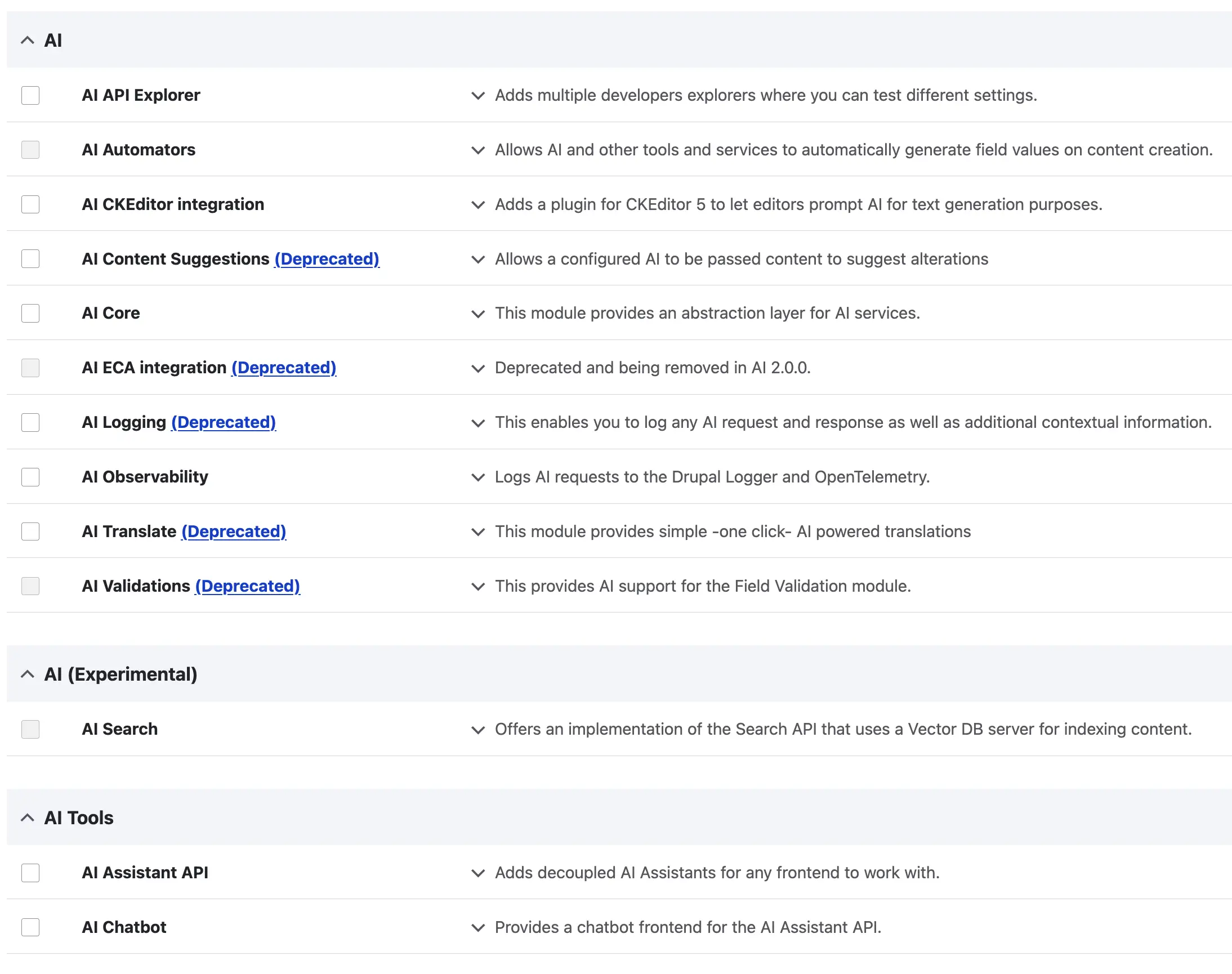
1.4.5 of the AI module.| Submodule | Description | When to enable it |
|---|---|---|
| AI Core | Abstraction layer for the AI ecosystem; connects to any configured provider. | Always — it's the base dependency for everything else. |
| AI API Explorer | Development tool for testing prompts and configurations directly from the Drupal interface. | Development environments only; don't leave it enabled in production. |
| AI CKEditor | Adds a CKEditor 5 plugin so content editors can prompt generative AI right from the text editor. | Editorial sites where writers need writing assistance. |
| AI Automators | Automatically fills in fields based on context, via cron, batch, or editor actions. | Content automation — for example, generating a summary or tags when a node is saved. |
| AI Assistant API | Decoupled foundation for building assistants that any frontend can consume. | When you need a custom assistant beyond the reference chat interface. |
| AI Chatbot | Reference chatbot implementation, built on top of AI Assistant API. | Chatbots — the fastest starting point to get one running. |
| AI Observability | Logs AI requests to the Drupal logger and to OpenTelemetry. | Production — essential for auditing cost, latency, and errors on every model call. |
| AI Search | Search API implementation backed by a vector database, for semantic search. | Advanced search use cases; still marked experimental. |
The only mandatory step at this stage is enabling AI Core:
ddev drush en ai -y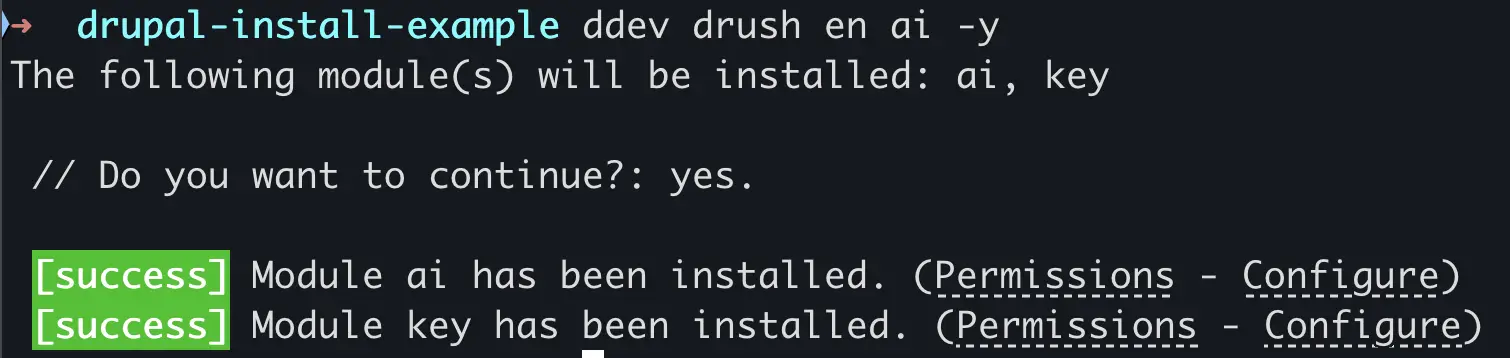
It's worth mentioning that drupal/ai's list of submodules changes between versions: in recent releases, AI Logging, AI Content Suggestions, AI Translate, AI Validations, and AI ECA integration already show up marked as deprecated or in the process of moving to independent contrib projects. Before enabling any of these five, check the current status at /admin/modules — Drupal's panel explicitly flags which ones are deprecated.
Configure the API key
The Key module already came installed as a dependency of drupal/ai (see the previous section), so you can create the key right now, even before installing a specific provider. It's done at /admin/config/system/keys — never paste the API key directly into a plain-text configuration field.
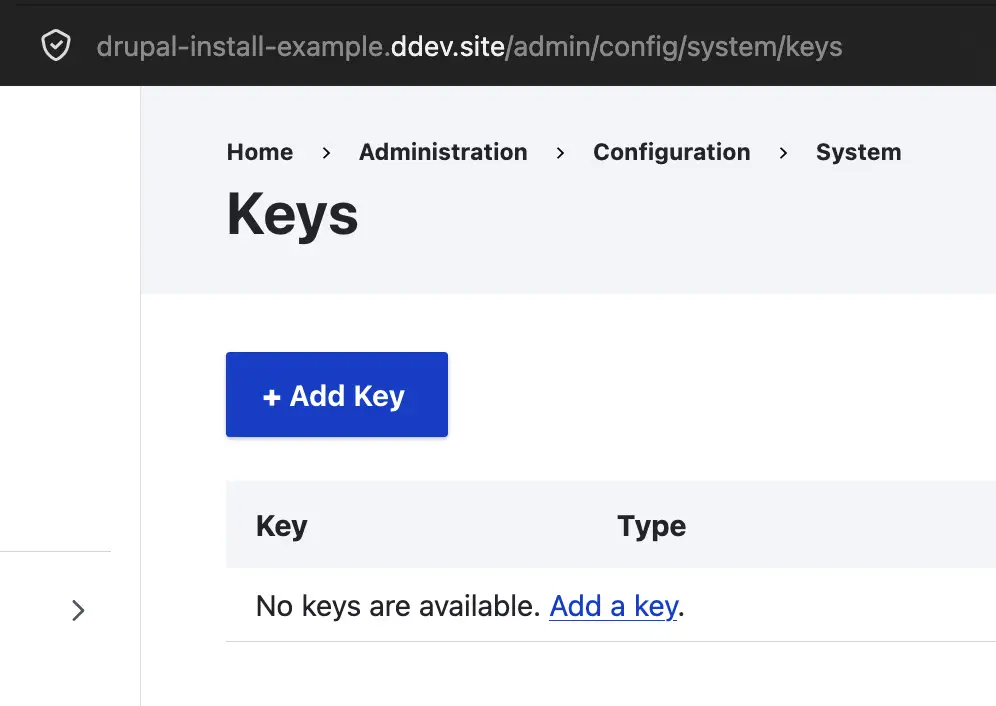
/admin/config/system/keys, before creating the first one.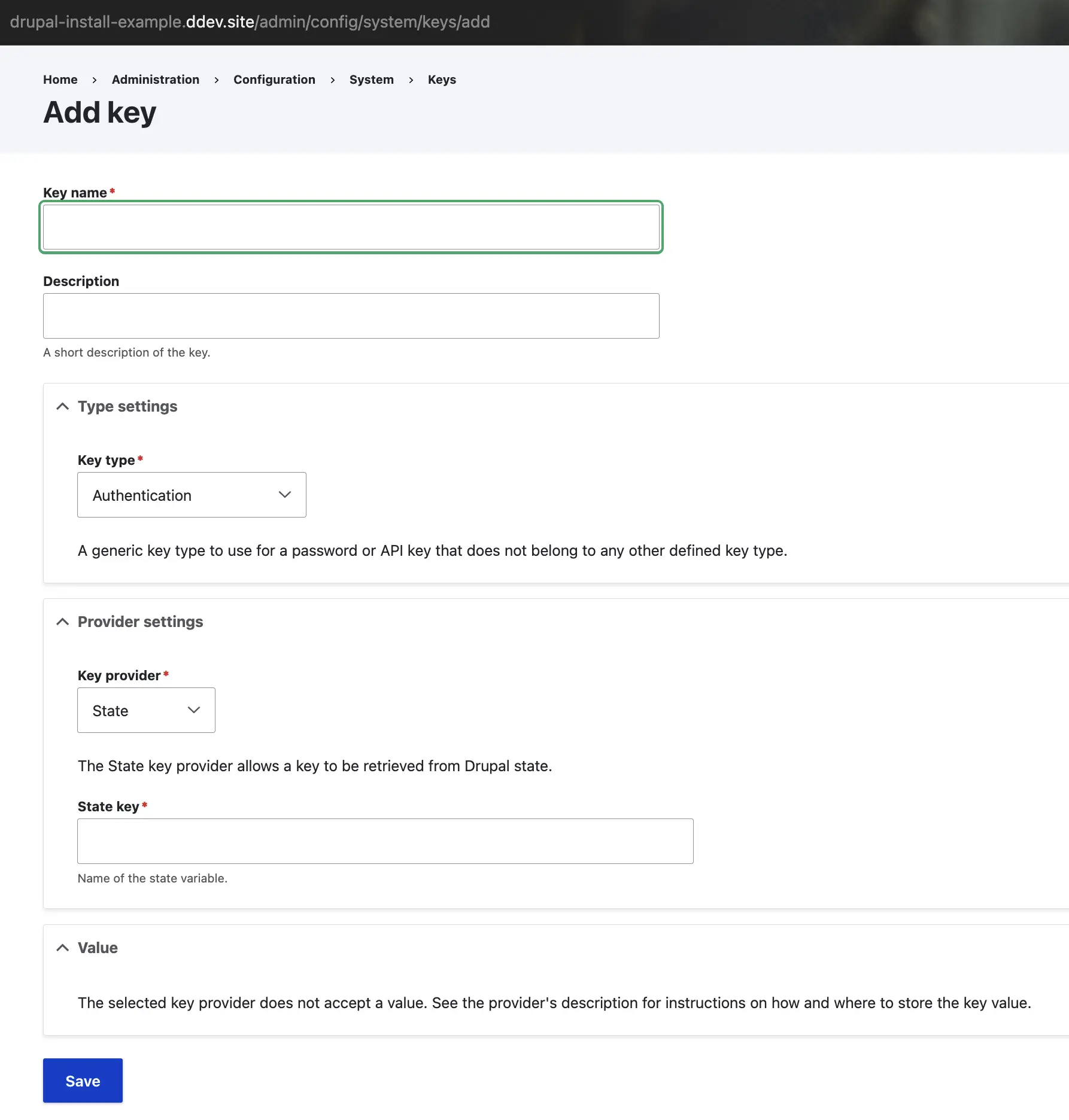
Install an AI provider: OpenAI, Anthropic, or Ollama
AI Core doesn't include any provider: each one is a separate Composer project that's installed and configured independently.
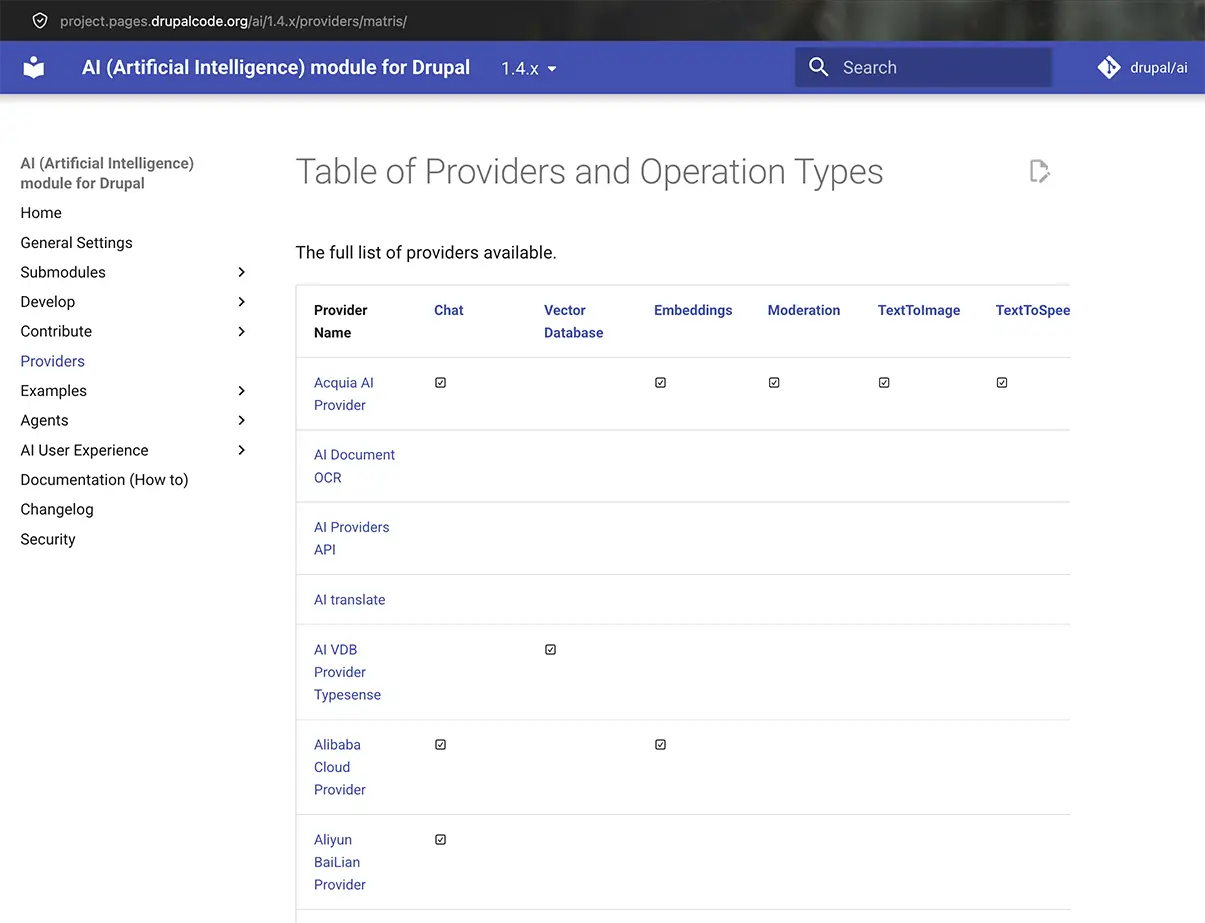
The complete list of providers can be found in the official providers and supported operations matrix, generated automatically from the source code. But the three most commonly used are:
- OpenAI —
ddev composer require drupal/ai_provider_openai - Anthropic —
ddev composer require drupal/ai_provider_anthropic - Ollama —
ddev composer require drupal/ai_provider_ollama, for models running on your own infrastructure without depending on an external service
You don't need to install all three: it's enough to install the provider module you'll actually use, and each one requires AI Core as a dependency. Nothing stops you from installing several in parallel if you want to compare results across providers or switch depending on the use case — although deciding which provider governs which use case, and under what permissions, is already the territory of AI governance in the CMS, not this installation guide. When working with DDEV, it's a good idea to run these commands with the same ddev composer require prefix used to install drupal/ai, so the installation stays inside the container rather than the local environment.
OpenAI, Anthropic, and Ollama are the most commonly used providers, but they're not the only ones: the drupal/ai ecosystem supports dozens of additional providers —Google Vertex, Gemini, Azure, LiteLLM, among others— each with its own Composer module and its own level of support for operations like chat, embeddings, or image generation.
Choosing a provider isn't a trivial configuration decision: it determines whether your data leaves for an external service or stays on your own infrastructure.
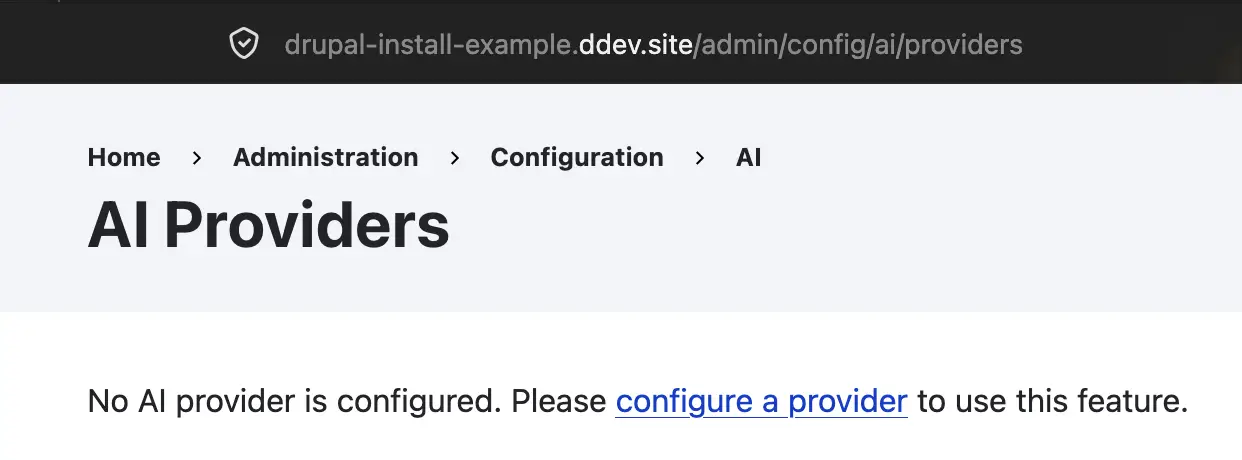
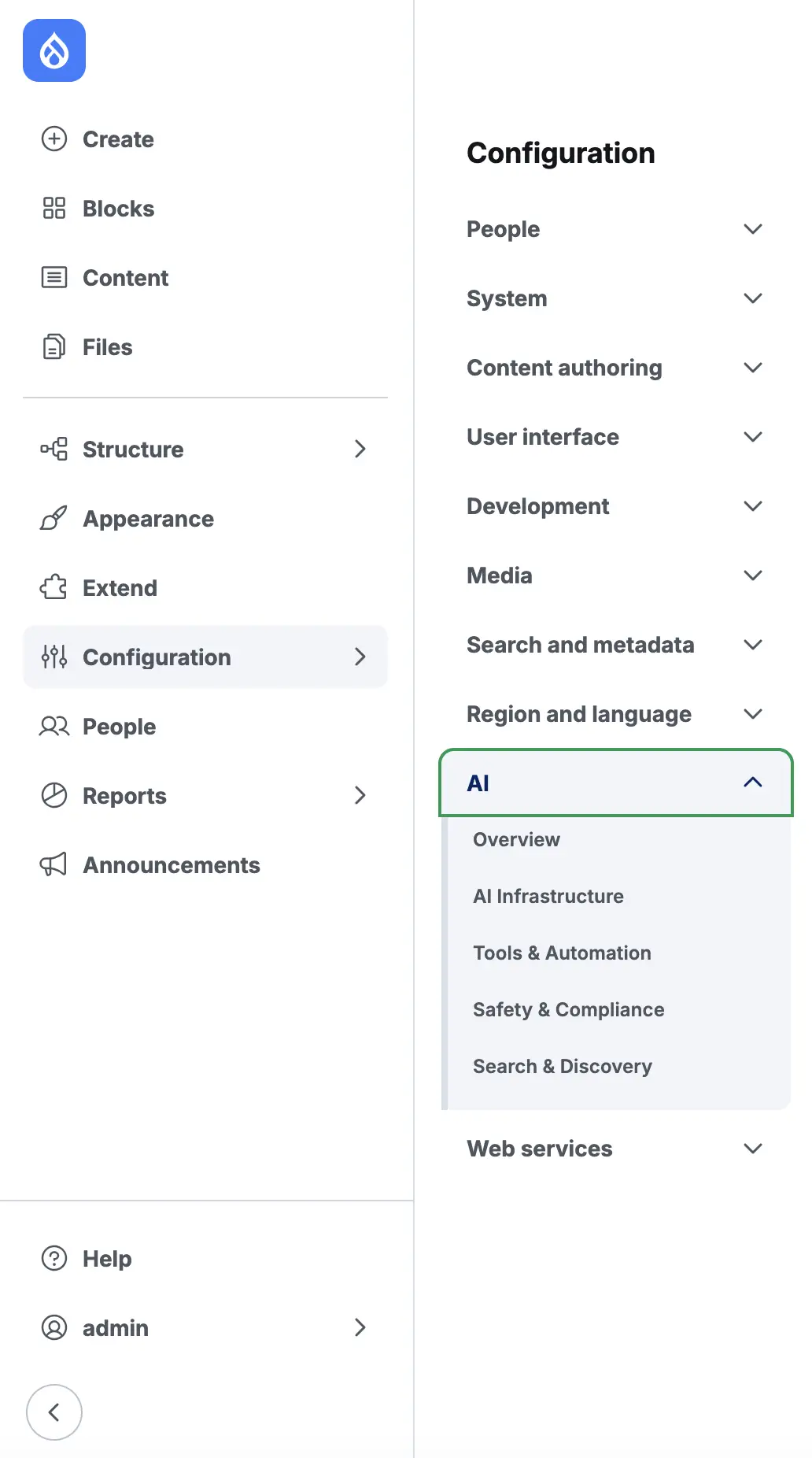
With the key already created and the provider installed, the last step is assigning that key in its specific configuration, inside /admin/config/ai/providers — accessible from the Configuration > AI menu in the admin panel:
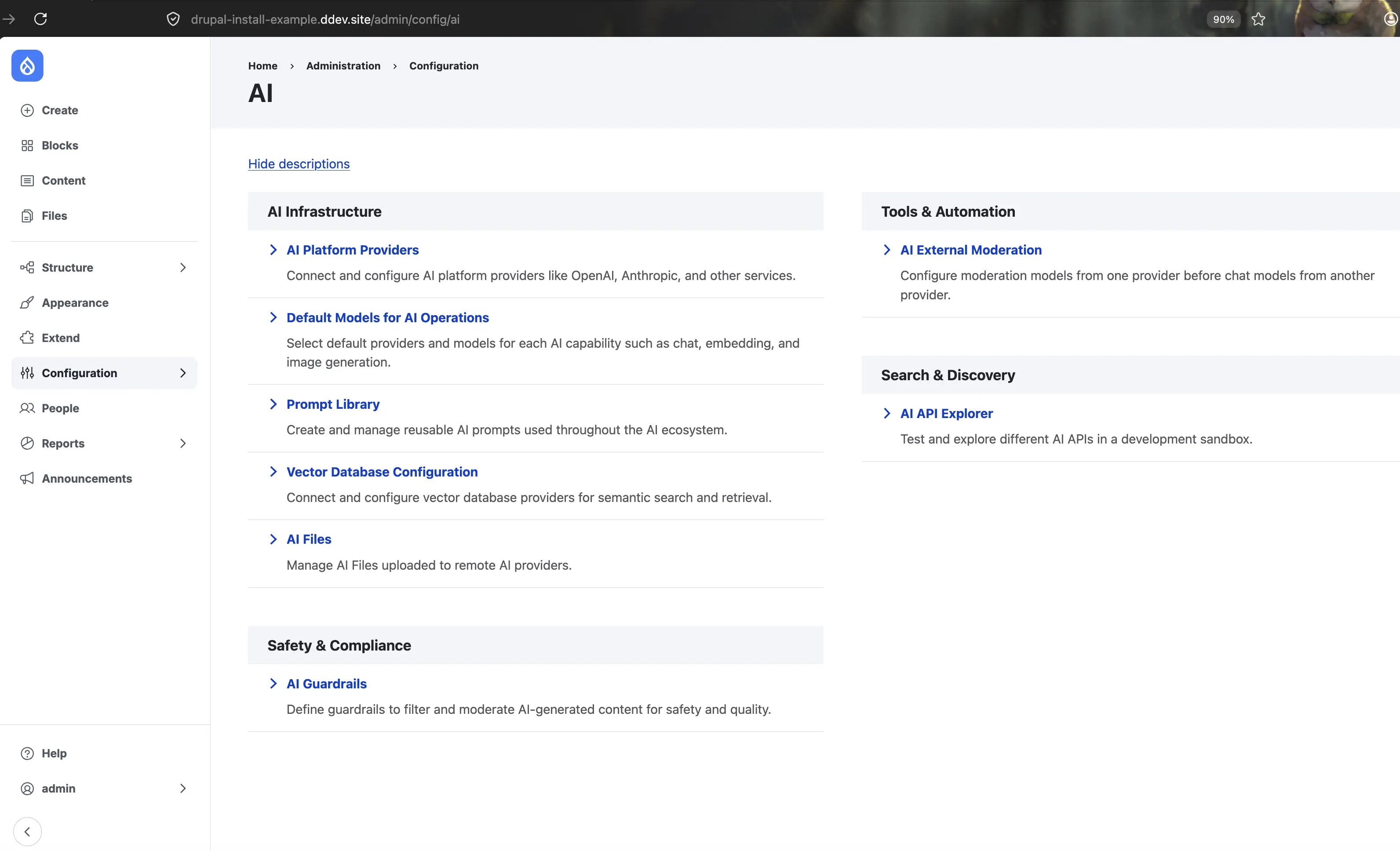
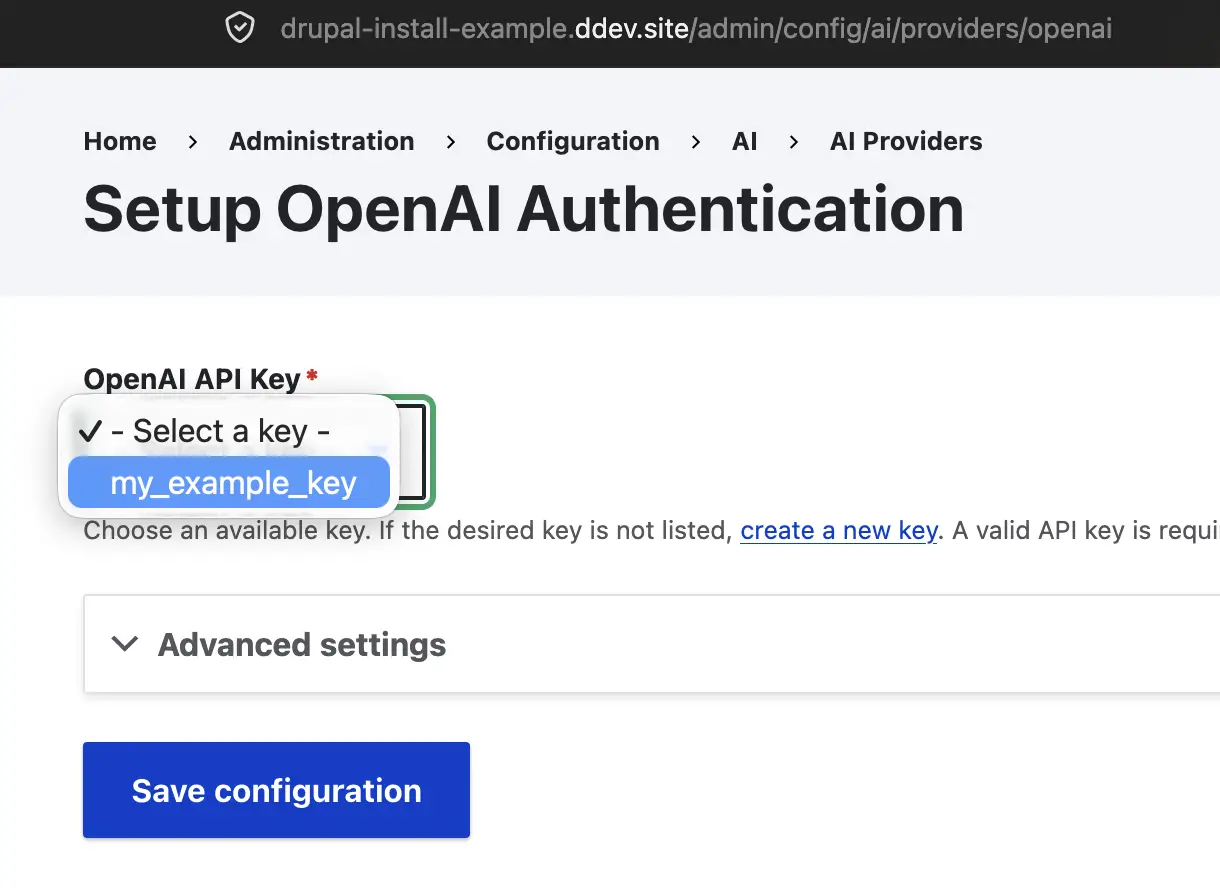
Inside AI Platform Providers, every installed provider has its own configuration page — for OpenAI, for example, /admin/config/ai/providers/openai — where you select, from a dropdown, the key created at /admin/config/system/keys (the first step of this guide, under "Configure the API key"):
Test the installation with AI API Explorer
AI API Explorer isn't at the same level of importance as AI Core: it's an optional development tool, not a system requirement, and it shouldn't stay enabled in production. It's enabled separately:
ddev drush en ai_api_explorer -y

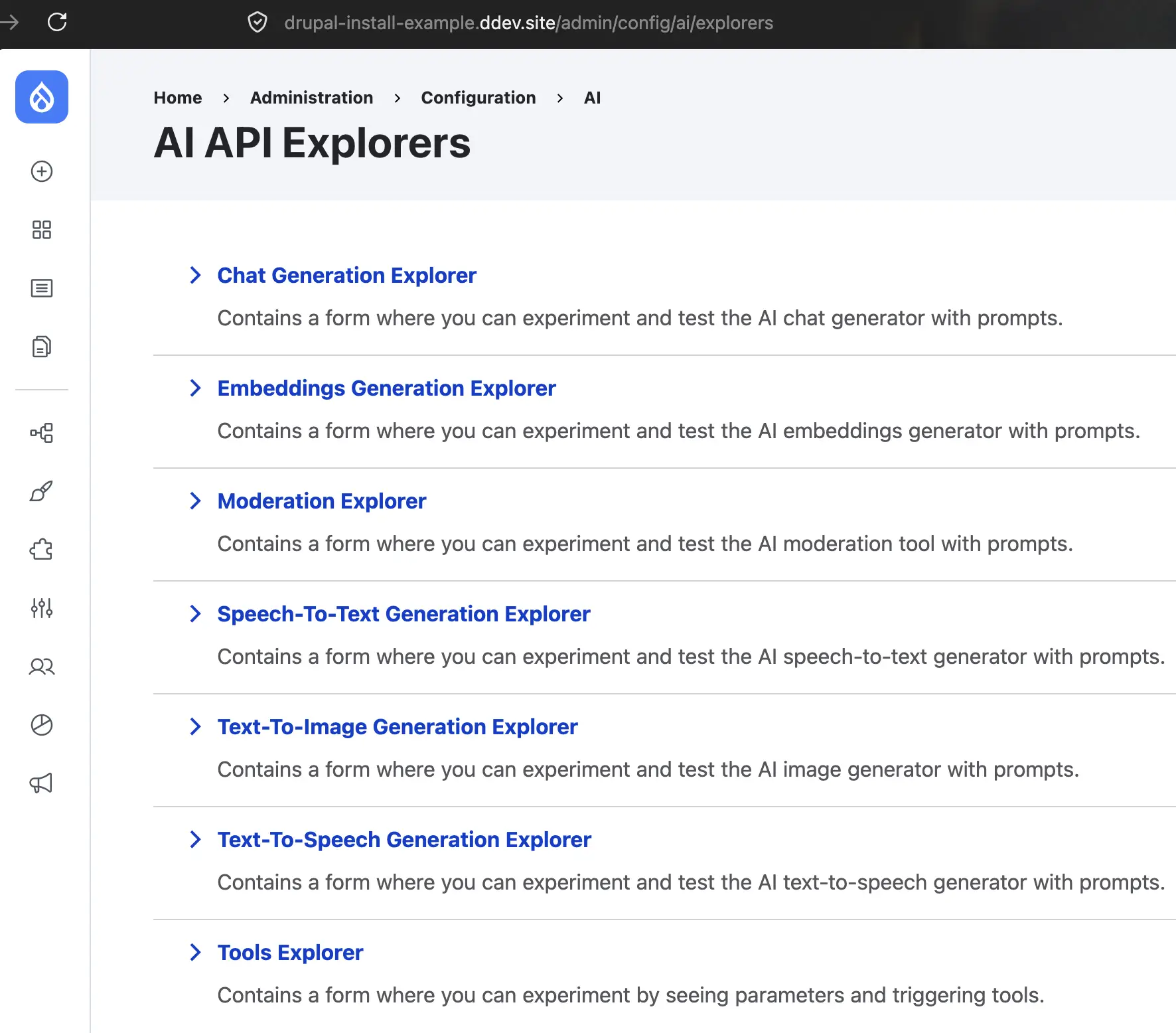
Once enabled, the actual path is /admin/config/ai/explorers: a list of "explorers," one for each supported operation type — Chat Generation, Embeddings Generation, Moderation, Speech-To-Text Generation, Text-To-Image Generation, Text-To-Speech Generation, and Tools Explorer, among others that may appear depending on the providers you already have configured.
For a first test, open the Chat Generation explorer (/admin/config/ai/explorers/chat_generator):
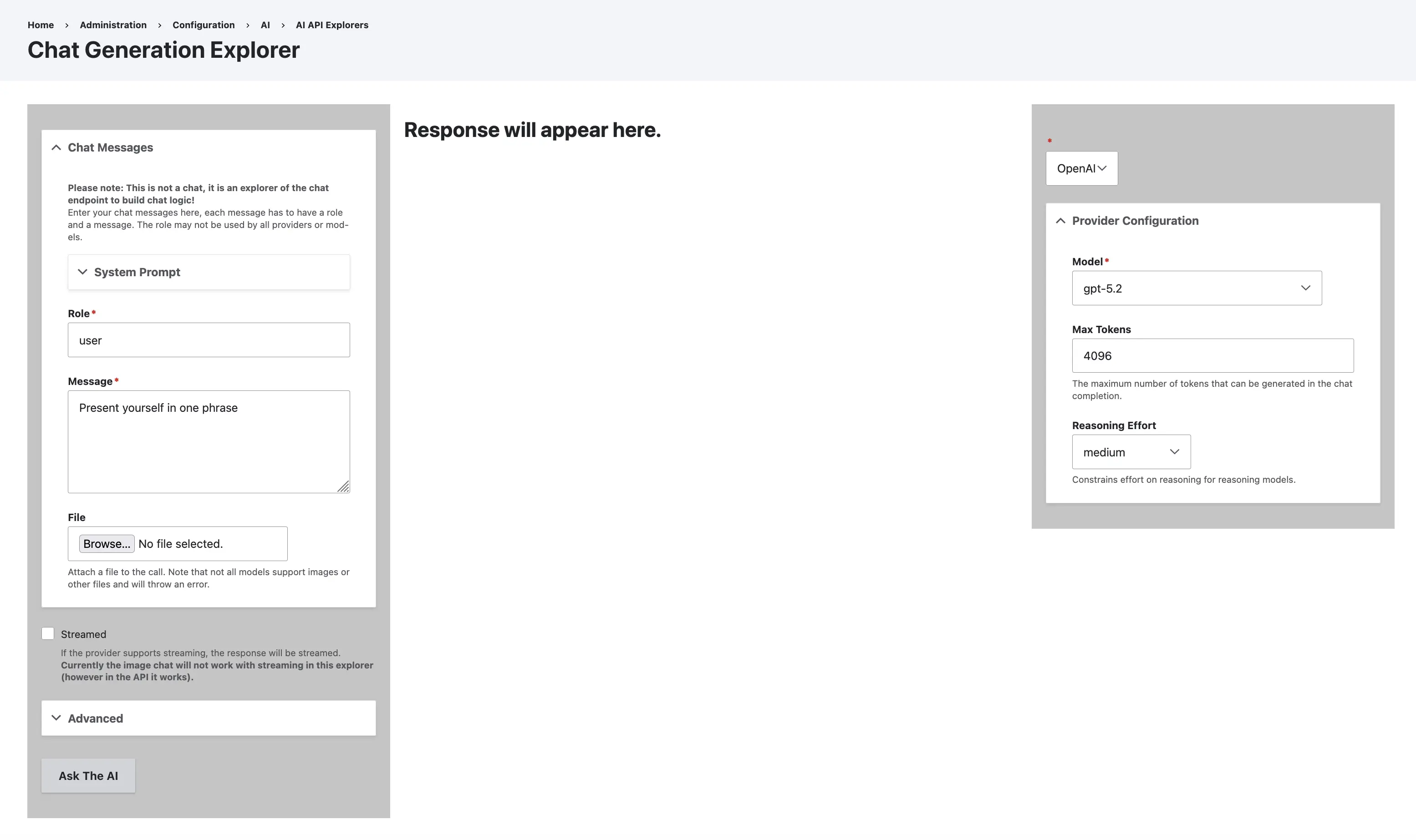
The minimum fields for a basic test are:
- Role: type
user— it's the standard role for a message simulating what a person would write. - Message: type any short prompt — it works in any language, for example "Present yourself in one phrase."
- In the right-hand panel, confirm that the provider (OpenAI, Anthropic, or Ollama) is the one you configured with your API key, and pick a Model from the dropdown — the list of available models depends on the selected provider.
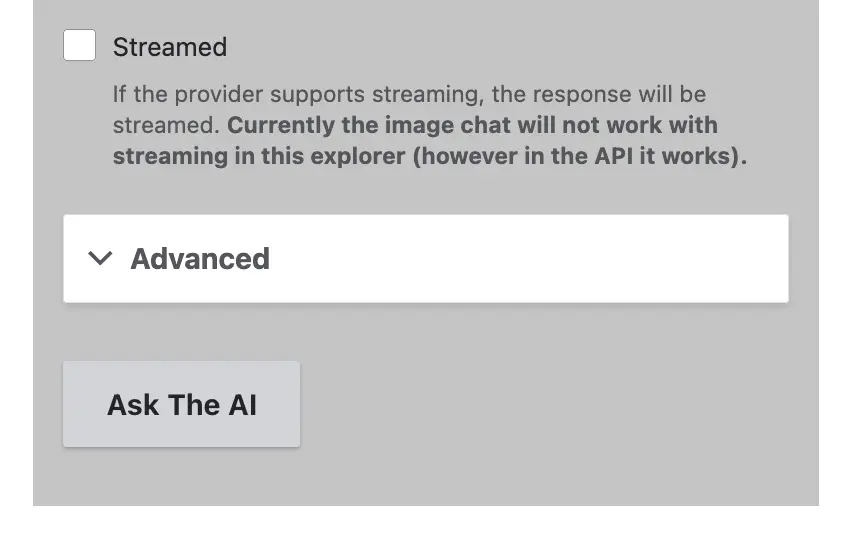
The rest of the fields (System Prompt, File, Streamed, Max Tokens, Reasoning Effort, Advanced) can be left at their default values for this first test. At the bottom of the form, click the Ask The AI button:
The model's response replaces the "Response will appear here" text in the center panel, along with the role of who's responding (assistant) and, in several explorers, two additional collapsible sections — Code Example and Raw Code Example — with the equivalent PHP code for the call, ready to reuse in a custom module:
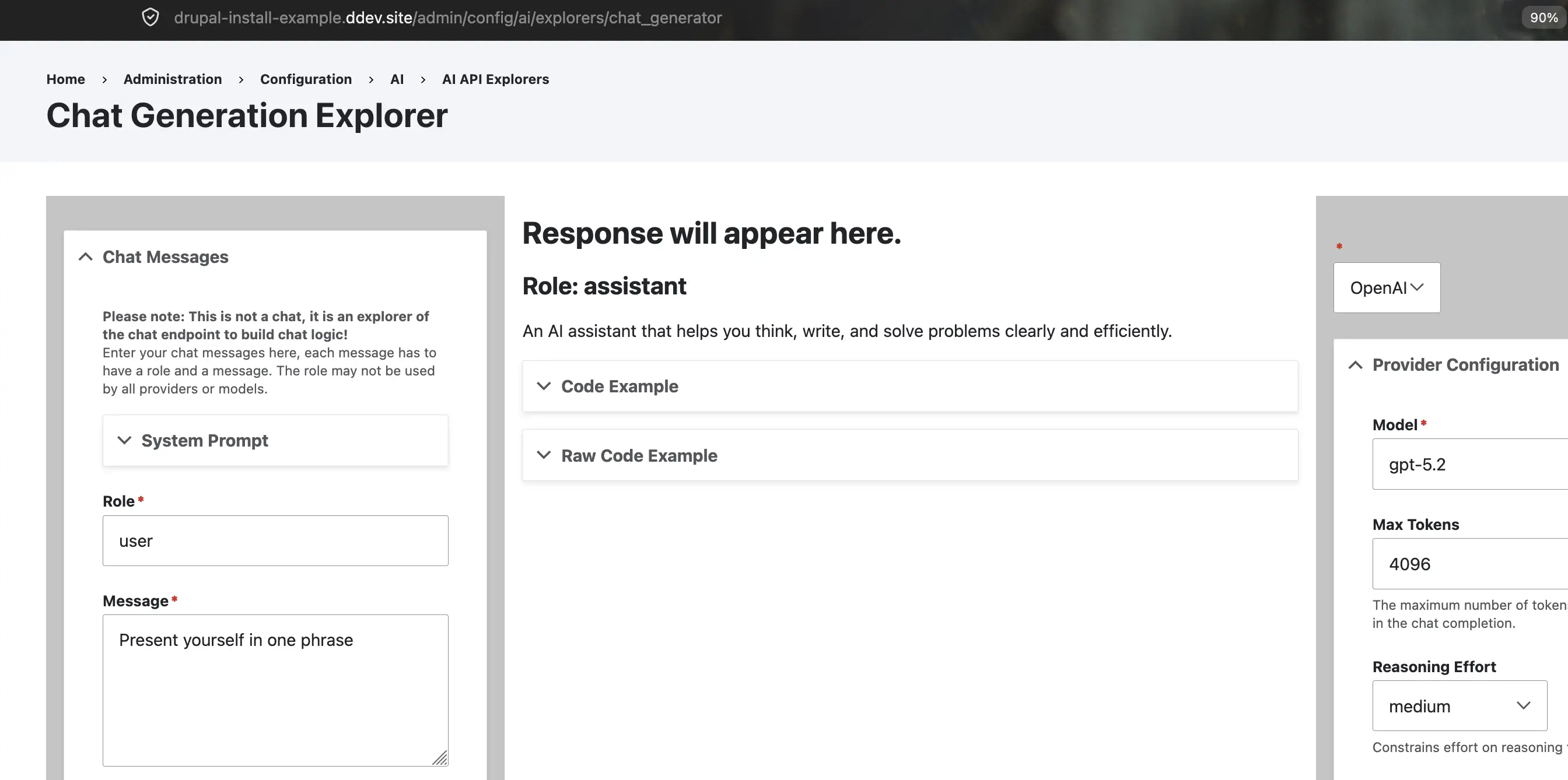
Seeing a response here confirms the connection works end to end. If the AI Observability module is also enabled, that same call gets logged in Drupal for later review.
Common issues when installing Drupal AI
Most of the blockers in this process don't come from drupal/ai's code — they come from steps people take for granted:
- "AI Core doesn't show up in /admin/modules": this almost always means
composer require drupal/airan outside the DDEV container (without theddevprefix), orddev composer installis still missing after cloning an existing project. - "I installed drupal/ai but I don't have AI working": this is the expectation mistake mentioned at the start — you still need to install and configure a provider module with its API key.
- Dependency error with the Key module: if a submodule was manually installed before AI Core, Composer can fail due to dependency order; always install
drupal/aifirst and enable submodules afterward. - Slow responses or timeouts in AI API Explorer: check the chosen provider first (a local Ollama depends on your machine's resources, not Drupal's code) before assuming it's a module bug.
Frequently asked questions
Does installing drupal/ai give me access to an AI model right away?
No.
drupal/aiinstalls the abstraction layer (AI Core) and optional submodules, but you need to separately install a provider module (OpenAI, Anthropic, Ollama) and configure its API key for the system to generate responses.What Drupal version do I need to install the AI module?
Drupal
10.5or later, or Drupal11.2or later. You also need the Key module enabled, since AI Core depends on it for secure credential handling.What's the only mandatory submodule of Drupal AI?
AI Core (machine name
ai). The rest of the submodules —API Explorer, CKEditor, Automators, Chatbot, Assistant API, Observability, Search— are optional and get enabled depending on the use case.Can I use a local model instead of OpenAI or Anthropic?
Yes, via the
drupal/ai_provider_ollamamodule, which connects Drupal to models running on your own infrastructure without depending on an external service.How do I test that the installation works without writing code?
By enabling AI API Explorer, which exposes a form in Drupal's admin interface to send a test prompt to any configured provider and see the response directly.
Need to install Drupal AI in an enterprise project or integrate OpenAI, Anthropic, or Ollama with Drupal? We can help. Get in touch →
Published by Seed EM · .